Connect your AI to Renovara NEM data
Renovara connects live National Electricity Market (NEM) and east coast gas market data to the AI you already use. Add one connector to Claude or ChatGPT, sign in with a code we email you, and ask about dispatch prices, regional demand, unit output or gas flows in plain English — no SQL required. Pick your client below.
Don’t have access yet? Start your 30-day free trial — no credit card.
Before you start
- You need a Renovara subscription or free trial. Sign in with the same email address you signed up with — that’s the account your access is linked to. No account yet? Start your 30-day free trial (no credit card).
- Custom connectors are available on all Claude plans, including Free (Free accounts are limited to one custom connector).
- Do this setup in Claude on the web (claude.ai) or in the desktop app.
- On Team or Enterprise plans, an Owner needs to add the connector for the organisation before members can use it — if you don’t see the option below, ask your workspace owner.
Setup steps in Claude
- Open Settings → Connectors in Claude.
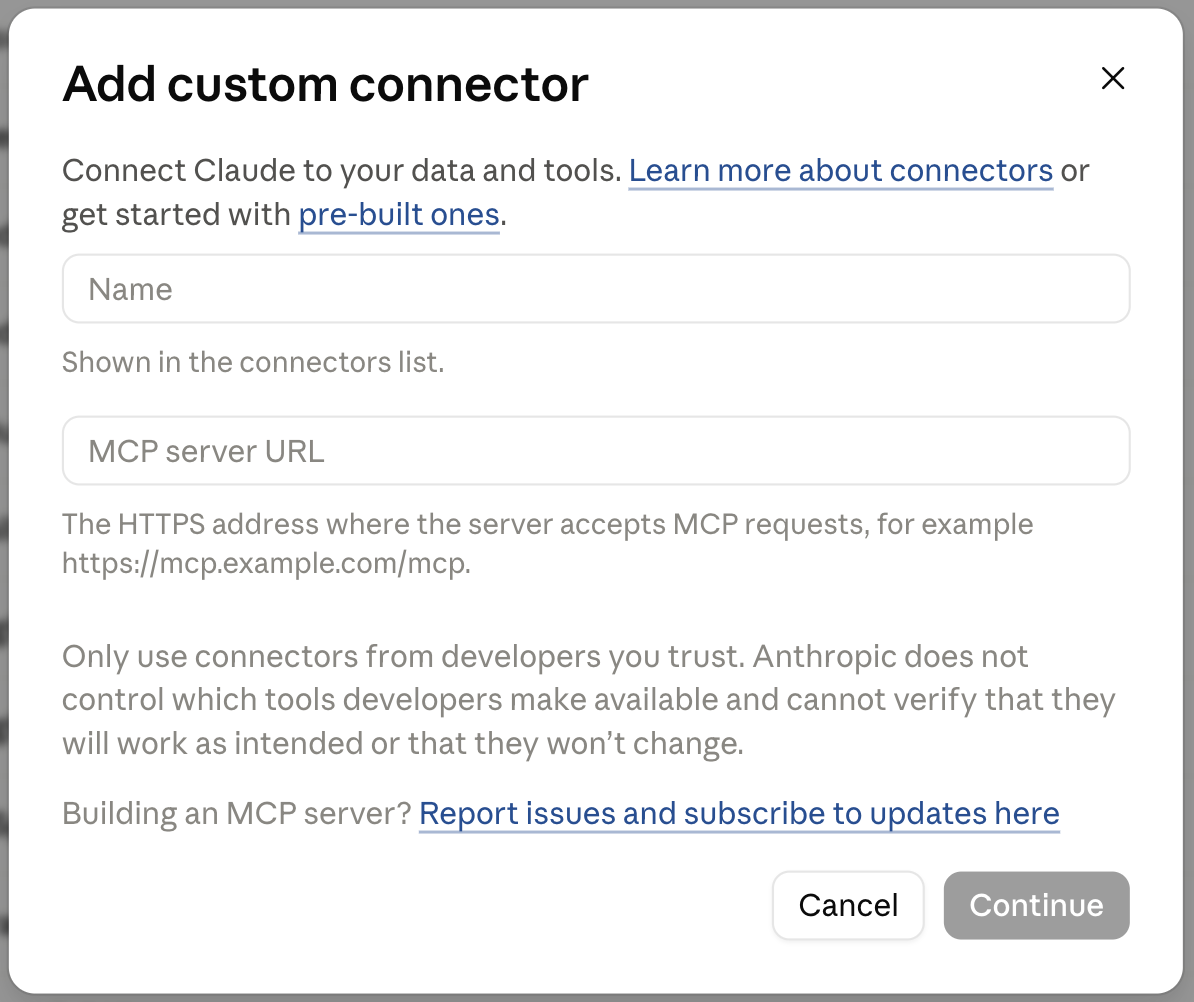
- Click Add custom connector.
- Fill in:
- Name:
Renovara NEM - MCP server URL:
MCP server URL
https://mcp.renovara.co/mcp
- Name:
- Click Continue. A Renovara sign-in window opens — see Signing in below. (If Claude lists the new connector first, click Connect on it.)
- Once you’re signed in, the connector shows as connected, with its tools listed.
Using it in Claude
Start a new chat, click the search and tools icon next to the message box, and check Renovara NEM is switched on. Then ask “Who am I on Renovara?” — Claude shows the email you’re signed in with and whether your subscription is active.
Signing in: an emailed code, no password
When you connect, Claude opens a Renovara sign-in window:
- Approve access. A Renovara page asks you to confirm that Claude may connect to Renovara NEM for you. Approve it.
- Enter your email. Use the address you signed up with. If you’re offered a choice, pick the emailed code.
- Enter the code. We email a one-time code from
no-reply@renovara.co. Type it in and you’re returned to Claude, connected.
Before you start
- You need a Renovara subscription or free trial. Sign in with the same email address you signed up with — that’s the account your access is linked to. No account yet? Start your 30-day free trial (no credit card).
- You’ll need a paid ChatGPT plan (Plus, Pro, Team, or Enterprise) — custom connectors aren’t available on the free tier.
- Do this setup in ChatGPT on the web (chatgpt.com) first; the desktop app picks the connector up afterwards.
Setup steps in ChatGPT
- Make sure Developer mode is on: click your account icon → Settings → Security and login, and toggle it on. Creating an app isn’t offered without it.
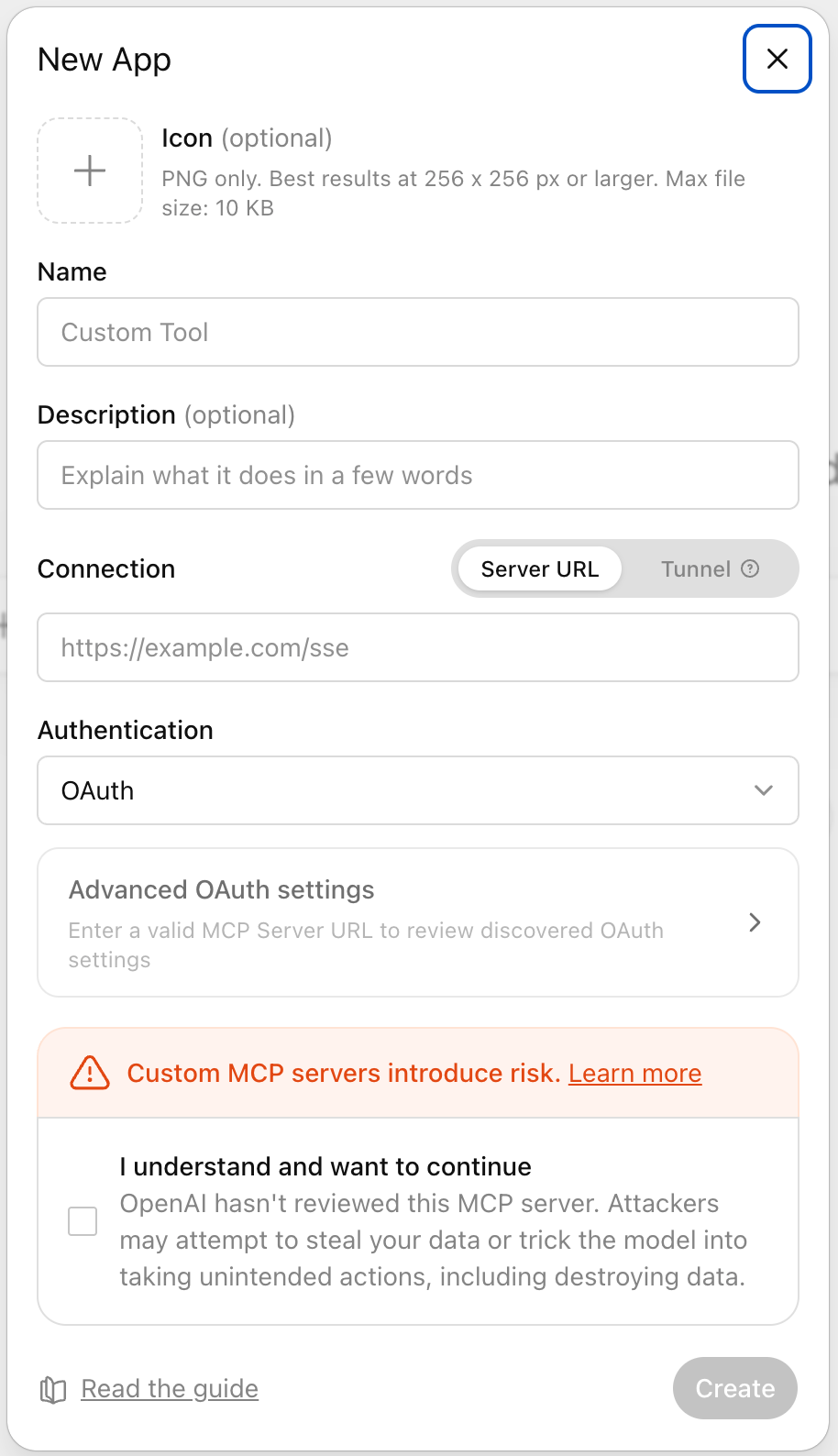
- Open Plugins, click +, choose Create App, then Create MCP App.
- Fill in:
- Name:
Renovara NEM - Connection: choose Server URL and enter:
MCP server URL
https://mcp.renovara.co/mcp - Authentication:
OAuth. Leave Advanced OAuth settings as they are — ChatGPT finds them from the server, and no client ID is needed.
- Name:
- Tick “I understand and want to continue” under the custom-MCP-server notice — ChatGPT shows this warning for every custom connector.
- Click Create. ChatGPT opens a Renovara sign-in window — see Signing in below.
- Once you’re signed in, the connector appears in your list with its tools.
Using it in ChatGPT
Start a new chat, click the + next to the message box, choose More, and switch on Renovara NEM. Then ask “Who am I on Renovara?” to check the connection.
Signing in: an emailed code, no password
When you connect, ChatGPT opens a Renovara sign-in window:
- Approve access. A Renovara page asks you to confirm that ChatGPT may connect to Renovara NEM for you. Approve it.
- Enter your email. Use the address you signed up with. If you’re offered a choice, pick the emailed code.
- Enter the code. We email a one-time code from
no-reply@renovara.co. Type it in and you’re returned to ChatGPT, connected.
The NEM and gas analysts are built in
The connector carries Renovara’s NEM and east coast gas analyst guides — what each table holds, the rules for querying it and worked examples — and your AI reads them before it writes any SQL. There’s nothing extra to install.
Want the same analysts as skills, for example in Claude Code? They’re published openly:
GitHub repository
Each skill is a self-contained zip under Releases. New to Claude skills? Anthropic has a good primer: Agent skills overview.
What can you ask?
Once connected, just ask in plain English, for example:
- “Who am I on Renovara?” — checks the connection and your subscription.
- “What was the average QLD spot price during last week’s heatwave?”
- “Which fuel types set the price in SA yesterday?”
- “Plot regional demand for NSW over the last week.”
- “How much gas flowed through the east coast pipelines this month?”
Your AI reads the analyst guide, writes the SQL and runs it against our market data for you. Market times are reported in AEST.
If something isn’t working
- Signed in, but told you have no active subscription. You probably signed in with a different email from the one you signed up with, or your trial has ended. Ask “Who am I on Renovara?” to see which email you’re using; to switch, disconnect the connector and connect again.
- No code arrived. Check your junk folder for mail from
no-reply@renovara.co, then request a new code. - Connected before September 2026? Earlier guides used a Databricks address (
dbc-…cloud.databricks.com) and a client ID. Remove that connector and add the new one above — your Renovara email stays the same.
Still stuck? Email accounts@renovara.co and we’ll help you troubleshoot.